COMPUTER MONITORS
Best Computer Monitors for a Gaming and Streaming Desk (2026)
UPDATED 2026 // 14 MIN READ // 13 PRODUCTS
A monitor is the one component you look at for every second the machine is on, and it is the component people most often buy on the wrong specification. The marketing pushes refresh rate because it is a single large number. In practice, the order that matters is size against desk depth, then resolution against that size, then panel type, then refresh rate, and only then everything else.
The thirteen panels below cover the range that a gaming or streaming desk realistically draws from: a 15.6-inch portable to 34-inch ultrawides, 1080p to ultrawide 1440p, 60Hz to 200Hz, IPS and VA. Some are here because they are the sensible default. Some are here because they solve one specific problem — a stand that adjusts, a USB-C cable that also charges a laptop, a colour-coverage figure worth having.
What follows is a comparison table, then one entry per panel with the trade-offs stated up front rather than buried. If you are unsure what any of the specifications actually change in daily use, the monitor specification guide linked further down covers the reasoning behind each one.
At a glance
13 ROWS // SCROLL HORIZONTALLY ON MOBILE
| Product | Best For | Key Spec | Trade-off | Link |
|---|---|---|---|---|
| 01Dell 27 Plus QHD Monitor S2725DSM | The person replacing a tired 1080p 60Hz monitor and wanting one panel that… | 27" · QHD 2560X1440 · 144HZ | Driving 1440p at 144Hz consistently asks more of a GPU than 1080p does — check what your card… | AMAZON |
| 02Dell 24 Monitor SE2426H | Shooter and fighting-game players who care about frame pacing more than pixel… | 23.8" · FHD IPS · 144HZ · 1MS | 1080p across 24 inches is a visible step down in text sharpness from a 1440p panel of the same… | AMAZON |
| 03Dell 34 Curved Monitor S3425DW | Someone who docks a laptop at the same desk they game on and wants the switch… | 34" CURVED · WQHD VA · 120HZ · USB-C 65W | VA panels show more dark smearing in fast motion than IPS does — noticeable in dark scenes with… | AMAZON |
| 04SANSUI 34" Curved UWQHD Gaming Monitor | Sim racing, flight sim, and open-world play where the extra horizontal field… | 34" CURVED · 3440X1440 · UP TO 200HZ · 1500R | Holding 3440x1440 near 200Hz needs serious GPU headroom — most cards will land well short in… | AMAZON |
| 05Acer KB272 27" FHD IPS Monitor | Streamers and editors who want a large second screen for chat, OBS, and… | 27" · FHD IPS · UP TO 120HZ · 99% SRGB | 1080p stretched over 27 inches is the lowest pixel density on this list — text edges are… | AMAZON |
| 06Dell 24 Plus Monitor S2425HSM | Anyone who has back or neck trouble from a monitor sitting too low, and… | 24" · FHD · 144HZ · HEIGHT/PIVOT/SWIVEL | Still 1080p — you are paying for the stand, not for resolution | AMAZON |
| 07Samsung 27" Essential Monitor S3 (S36GD) | Someone curious about curved panels who does not want to commit to an… | 27" · FHD · 1800R CURVED · 100HZ | 1080p at 27 inches means soft text at normal viewing distance | AMAZON |
| 08Samsung 32" Flat Monitor (LS32B304NWNXGO) | A console corner, a couch-facing setup, or a second desk where screen size… | 32" · FLAT · 75HZ · FREESYNC | 75Hz is the lowest refresh rate on this list and will feel slow next to any 144Hz panel | AMAZON |
| 09Philips 241V8LB 24" FHD Monitor | A secondary display, a family or shared machine, or anyone specifically… | 24" · FHD VA · 100HZ · FLICKER-FREE | VA response in dark transitions produces visible smearing during fast pans | AMAZON |
| 10Sceptre E225W-FW144 22" Gaming Monitor | A tight desk, a travel or LAN setup, or a dedicated capture and monitoring… | 22" · FHD · UP TO 144HZ | 22 inches feels genuinely small if you are coming from anything larger | AMAZON |
| 11MNN 15.6" FHD Portable Monitor | A laptop-based setup that moves between rooms or cities, or a permanently… | 15.6" · FHD IPS · PORTABLE · USB-C | 60Hz and 15 | AMAZON |
| 12Sceptre E275W-FW100T 27" 100Hz Monitor | A first proper desk setup where one affordable screen has to cover games,… | 27" · FHD · 100HZ · SPEAKERS | 1080p stretched across 27 inches is visibly coarser in text than the same resolution at 24… | AMAZON |
| 13SAMSUNG 34" ViewFinity S50GC Ultra-WQHD | A work-first desk that games occasionally — spreadsheets, timelines, and code… | 34" · UWQHD VA · 100HZ · PIP/PBP | 100Hz where the other ultrawides here reach 120 to 200Hz — fine for work, adequate for casual… | AMAZON |
The picks

Dell 27 Plus QHD Monitor S2725DSM
A 27-inch 1440p panel at 144Hz is the point where desktop text stops looking coarse and motion stops looking like a slideshow. This is the size and resolution most desks should be aiming at.
TRADE-OFFS
- Driving 1440p at 144Hz consistently asks more of a GPU than 1080p does — check what your card actually holds in the games you play
- A single 27-inch panel is wide enough that a shallow desk pushes it too close to your face
- Nothing here is aimed at colour-critical print work; it is a general-purpose desktop panel

Dell 24 Monitor SE2426H
An IPS panel at 23.8 inches and 144Hz. The size that competitive players keep going back to, because the whole playfield sits inside your central vision without a head turn.
TRADE-OFFS
- 1080p across 24 inches is a visible step down in text sharpness from a 1440p panel of the same size
- The stand on this tier is usually tilt-only — plan on a monitor arm or a riser if you need height
- Bezels and build are functional rather than premium

Dell 34 Curved Monitor S3425DW
A 34-inch curved ultrawide with 65W USB-C power delivery. One cable carries video and charges a laptop, which quietly removes a power brick from the desk.
TRADE-OFFS
- VA panels show more dark smearing in fast motion than IPS does — noticeable in dark scenes with rapid camera movement
- 65W charges thin-and-light laptops but will not keep up with a power-hungry gaming laptop under load
- An ultrawide replaces two monitors physically but not always logically — some applications do not window well at this aspect ratio

SANSUI 34" Curved UWQHD Gaming Monitor
The high-refresh ultrawide option. 3440x1440 at up to 200Hz on an aggressive 1500R curve, aimed squarely at racing and flight sims where peripheral vision does real work.
TRADE-OFFS
- Holding 3440x1440 near 200Hz needs serious GPU headroom — most cards will land well short in modern titles
- A 1500R curve is noticeable on straight lines, which some people find distracting for document and design work
- A less common brand means fewer local service options than the mainstream names

Acer KB272 27" FHD IPS Monitor
A 27-inch IPS panel quoting 99% sRGB coverage and up to 120Hz. The colour-coverage figure is what separates it from the rest of the budget 27-inch field.
TRADE-OFFS
- 1080p stretched over 27 inches is the lowest pixel density on this list — text edges are visibly softer than on a 24-inch FHD panel
- 120Hz sits below the 144Hz that most competitive players treat as the floor
- Budget 27-inch stands are usually tilt-only

Dell 24 Plus Monitor S2425HSM
The one on this list with a stand that actually adjusts. Height, pivot, and swivel on a 24-inch 144Hz panel — that ergonomic hardware normally costs extra as a separate arm.
TRADE-OFFS
- Still 1080p — you are paying for the stand, not for resolution
- A full ergonomic stand has a deeper base than a tilt-only one, which costs you desk depth
- Pivoting an IPS-class panel to portrait can shift how the backlight looks at the edges

Samsung 27" Essential Monitor S3 (S36GD)
A gently curved 27-inch panel at 100Hz. The 1800R curve is subtle enough that it does not distort straight lines the way tighter curves can.
TRADE-OFFS
- 1080p at 27 inches means soft text at normal viewing distance
- 100Hz will not satisfy anyone coming from 144Hz or higher
- A curved panel does not sit flush against a wall, so it eats a little more desk depth than a flat one

Samsung 32" Flat Monitor (LS32B304NWNXGO)
The largest flat panel here at 32 inches, running 75Hz with FreeSync. This is a screen-size play, not a performance one, and it is honest about that.
TRADE-OFFS
- 75Hz is the lowest refresh rate on this list and will feel slow next to any 144Hz panel
- At 32 inches, 1080p-class density is stretched thin — you will see pixel structure at close range
- Best viewed from further back than a typical desk allows

Philips 241V8LB 24" FHD Monitor
A plain 24-inch VA panel at 100Hz with flicker-free backlight control. The kind of monitor you buy three of for a shared room and stop thinking about.
TRADE-OFFS
- VA response in dark transitions produces visible smearing during fast pans
- Basic tilt-only stand and no USB hub
- Colour out of the box on budget VA panels usually needs adjusting in the OSD
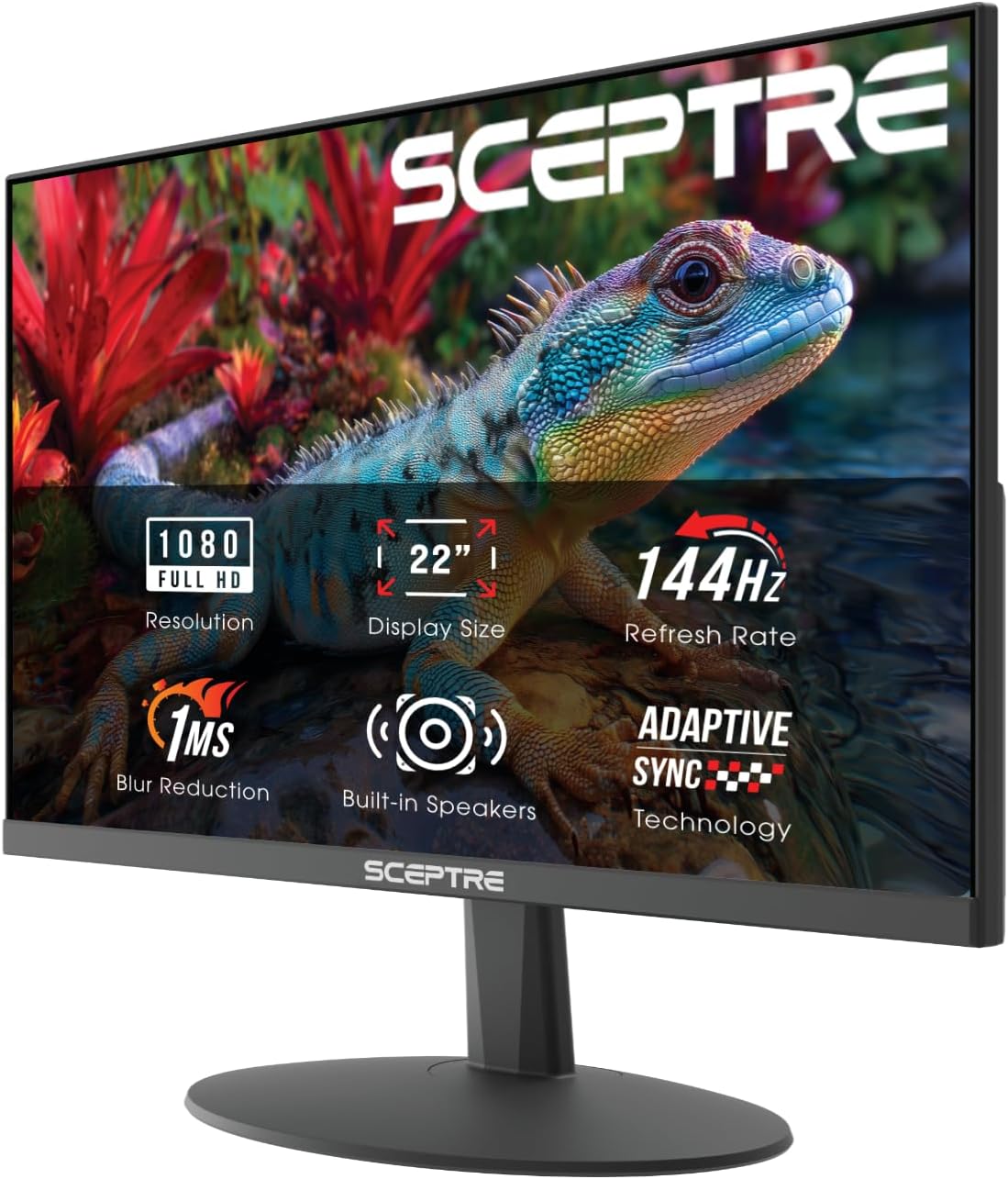
Sceptre E225W-FW144 22" Gaming Monitor
A 22-inch panel running up to 144Hz. Small, and deliberately so — this is the size for a cramped desk, a LAN box, or a dedicated second machine.
TRADE-OFFS
- 22 inches feels genuinely small if you are coming from anything larger
- Budget panel construction with a basic stand
- Limited port selection compared with the bigger names

MNN 15.6" FHD Portable Monitor
The one monitor here that leaves the desk. A 15.6-inch 1080p IPS panel that runs off a single USB-C cable, thin enough to travel with a laptop and useful as a permanent side screen when it stays home.
TRADE-OFFS
- 60Hz and 15.6 inches — this is a utility screen, not a gaming panel
- The built-in speakers are for notifications, not for media
- It needs a laptop USB-C port that actually carries DisplayPort Alt Mode, or a second cable for power

Sceptre E275W-FW100T 27" 100Hz Monitor
A 27-inch 1080p panel at 100Hz with built-in speakers and a frameless design. The budget route to a 27-inch main screen, with the compromises placed where they hurt least.
TRADE-OFFS
- 1080p stretched across 27 inches is visibly coarser in text than the same resolution at 24 inches
- 100Hz sits awkwardly below the 144Hz panels on this list for competitive play
- Tilt-only stand, so plan on a riser or an arm to get the height right

SAMSUNG 34" ViewFinity S50GC Ultra-WQHD
A flat 34-inch ultrawide at 3440x1440 and 100Hz. The productivity-first take on the ultrawide format, with picture-by-picture that can show two devices on one panel at once.
TRADE-OFFS
- 100Hz where the other ultrawides here reach 120 to 200Hz — fine for work, adequate for casual play
- VA panel smearing shows in fast dark scenes
- No USB-C video input, so laptop users need HDMI or DisplayPort
// CHECK THIS FIRST
Your new monitor is probably running at 60Hz right now
Windows and macOS routinely default a newly connected display to 60Hz even when the cable and panel both support more. Open your display settings, find the refresh rate dropdown, and select the highest available value. A significant number of people who bought a 144Hz panel have never actually seen it run at 144Hz.
// CABLE MATTERS
HDMI and DisplayPort are not interchangeable at high refresh
Older HDMI revisions cap the combination of resolution and refresh rate they can carry. If a 1440p 144Hz panel refuses to offer you 144Hz, the cable or the port is frequently the reason. Use DisplayPort where your GPU has the output free, and use the cable that shipped in the box before buying a replacement.
Buying guide
Size is a function of desk depth, not preference
The most common monitor mistake is buying a panel that is too large for the distance available. Screen size and viewing distance are linked: a 27-inch panel wants roughly an arm length between your eyes and the glass, and a 32-inch panel wants more than that. On a 24-inch-deep desk, once you allow for the stand base and a keyboard, a 32-inch panel ends up close enough that you have to move your head to read the corners.
Measure the depth of your desk before you decide on a size. If the number is under 24 inches, a 24-inch panel is the sensible ceiling unless you are wall-mounting or using an arm to push the panel back over the desk edge. If you have 30 inches of depth, 27 to 32 opens up. Ultrawides at 34 inches need both depth and at least 55 inches of width.
Resolution against size determines whether text looks sharp
Pixel density is what decides whether text edges look crisp or slightly furred. The same 1920x1080 resolution looks noticeably sharper on a 22-inch panel than on a 27-inch one, because the same pixels are spread across less area. This is why a 27-inch 1080p monitor is a compromise: it is a large image, but at normal desk distance you can see the pixel structure in small text.
1440p across 27 inches is the density point where most people stop noticing pixels at desk distance, which is why it has become the default recommendation for that size. Ultrawide 3440x1440 across 34 inches lands in a similar density band. If you spend as much time reading and writing as gaming, weight this more heavily than refresh rate.
IPS and VA solve different problems
IPS panels hold colour and brightness consistently across viewing angles and generally handle fast transitions cleanly. VA panels produce deeper blacks and higher contrast, which makes dark scenes and letterboxed video look better, but they are slower on dark-to-light transitions — which shows up as smearing behind moving objects in dark scenes.
If you play competitive shooters or watch a lot of fast content, IPS is the safer choice. If you mostly play single-player games in dark environments and watch films, VA contrast is a real benefit. Neither is universally better, and anyone telling you otherwise is selling one of them.
Refresh rate has a floor, a useful range, and diminishing returns
Going from 60Hz to 100Hz or 120Hz is the largest single perceptual jump — mouse movement and window scrolling change character entirely. From 120Hz to 144Hz the difference is smaller but still noticeable. Above 144Hz the gains are real but progressively harder to perceive, and they cost GPU headroom that could have gone into resolution or settings instead.
The other half of the equation is whether your graphics card can actually produce those frames. A 200Hz panel fed 70 frames per second is a 70Hz experience with an expensive label. Match the panel to what your GPU holds in the games you actually play, and enable adaptive sync so the panel matches the card when the frame rate varies.
The stand is a specification too
Most monitors ship with a tilt-only stand, which means the height is whatever the manufacturer decided. If the top of the panel does not land at or slightly below eye level when you sit upright, you spend every session with your neck at an angle. That is a hardware problem with a hardware fix: either buy a panel with a height-adjustable stand, or budget for a VESA arm and treat the included stand as packaging.
Check the VESA mounting pattern before assuming an arm will fit — 100x100mm is standard on most desktop monitors, but not universal, and some panels need an adapter plate. Also check the weight against the arm rating, particularly for anything 32 inches or larger.
// WORTH KNOWING
Brightness is not a setting to max out
Most people run a monitor far brighter than the room requires, then wonder why their eyes hurt after four hours. The panel should be roughly as bright as the wall behind it. Turn the brightness down until the screen stops looking like a light source, add a bias light behind the panel, and the fatigue usually goes with it.
// GOES DEEPER ON THIS
Refresh Rate, Response Time, and Resolution: Reading Monitor Specs Without the Marketing
Monitor listings are a wall of numbers, most of which are chosen because they are large rather than because they are useful. Here is what each one changes, and which ones to ignore.
Questions
REFERENCES
- VESA — DisplayPort standards and DisplayHDR certification
The standards body behind DisplayPort, the VESA mounting pattern, and the DisplayHDR tiers.
- NIOSH — Computer workstation ergonomics
Public-health guidance on screen height, viewing distance and seated posture at a workstation.
- W3C — Web Content Accessibility Guidelines on contrast
Useful background on contrast and legibility if you are calibrating a panel for text work.
OTHER CATEGORIES
© 2026 RIGSPAWNDESK — HOW WE PICK